Web app
Explore AbujaMart's real orders in SheetScope
8 steps captured as screenshots of SheetScope and uploaded, with StepLoom AI writing, hiding and translating.
- Site captured
- SheetScope
- How it was captured
- Made from uploaded screenshots
- Steps
- 8
- Languages
- English, Spanish, French, Nigerian Pidgin, Yoruba, Igbo, Hausa
Made from uploaded screenshots Screens captured in Chrome by an automated browser, with the click points recorded, then uploaded to StepLoom (Upload screenshots).
8
Steps
1.8 s
First screen on a phone, Regular 3G (750 kbps), median of 5 runs
2.7 s
First screen on a phone, Slow 3G (400 kbps), median of 5 runs
234 KB
Whole demo on a phone, with the page and player
Whole demo on a phone: 234 KB with the page and player; pictures 199 KB; the Pidgin voice adds 253 KB.
SheetScope is a product by the StepLoom team; this demo was recorded on its public demo pages.
What was measured
- Real Chromium on a Mac, emulating a phone, with the cache cleared for every run, opening the live site.
- Three connections: the real network of the Mac (nothing slowed), regular 3G (750 kbps with 300 ms delay) and slow 3G (400 kbps with 400 ms delay), slowed through the browser's own tools.
- Phone is a 390 pixel wide screen at 2x with touch; computer is 1280 pixels at 1x.
- The processor is not slowed and no physical phone was used.
- First screen is the time from opening the link until the first step's picture is on screen (video: the cover picture; sandbox: the start page's picture).
- Whole demo is opening the link, pressing Start and clicking through every step (the click spot, or Next when something else sits on top of the spot) until the last screen shows, with no pause added between steps and sound off.
- A video is played to the end at normal speed after pressing play, counting every time it stopped to wait, and a sandbox is measured to the moment every captured page has been opened from its page list.
- Bytes are what crossed the network, counted by kind: page, scripts, styles, pictures, audio, fonts and other.
- Voice is a separate pass with one voice language on, waiting at each step for its clip; those audio bytes are reported separately.
- Every number is the middle one of the runs (the median) with the lowest and highest next to it.
| Connection | Screen | First screen, middle run (lowest to highest) | Every step, middle run (lowest to highest) | First screen, bytes | Whole demo, bytes | Of that, pictures |
|---|---|---|---|---|---|---|
| The real network | Phone, 390 px wide | 1.3 s (1.0 to 1.9) | 3.2 s (2.7 to 3.7) | 67 KB | 234 KB | 199 KB |
| The real network | Computer, 1280 px wide | 1.3 s (1.1 to 1.4) | 4.4 s (4.3 to 6.2) | 66 KB | 382 KB | 347 KB |
| Regular 3G (750 kbps) | Phone, 390 px wide | 1.8 s (1.7 to 2.7) | 6.0 s (5.8 to 7.6) | 46 KB | 234 KB | 199 KB |
| Regular 3G (750 kbps) | Computer, 1280 px wide | 2.3 s (2.1 to 2.9) | 9.0 s (8.7 to 10) | 86 KB | 382 KB | 347 KB |
| Slow 3G (400 kbps) | Phone, 390 px wide | 2.7 s (2.5 to 3.0) | 9.2 s (9.1 to 9.4) | 67 KB | 234 KB | 199 KB |
| Slow 3G (400 kbps) | Computer, 1280 px wide | 3.1 s (3.0 to 3.7) | 13 s (13 to 14) | 87 KB | 382 KB | 347 KB |
- Page 11 KB, scripts 21 KB, styles 3 KB, pictures 199 KB, on a phone.
- Voice on top, for a viewer who plays it: English 262 KB, Nigerian Pidgin 253 KB, Yoruba 302 KB.
- On a computer, 2 of 8 steps were passed with Next because something sat on top of the click spot where it was placed.
The steps
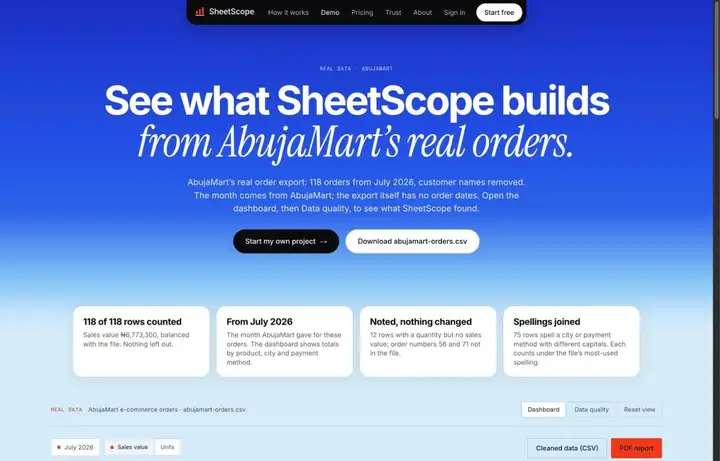
[01]
Click Units
Switch your view to see product metrics measured by units instead of sales value.
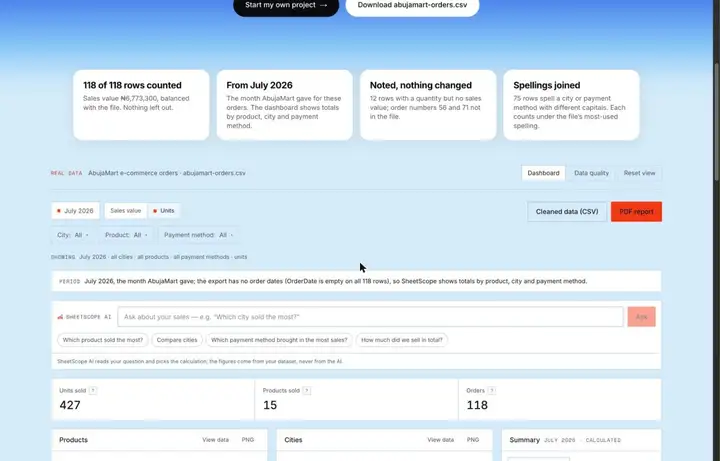
[02]
Click City: All
Open the city filter dropdown to narrow down the sales data by location.
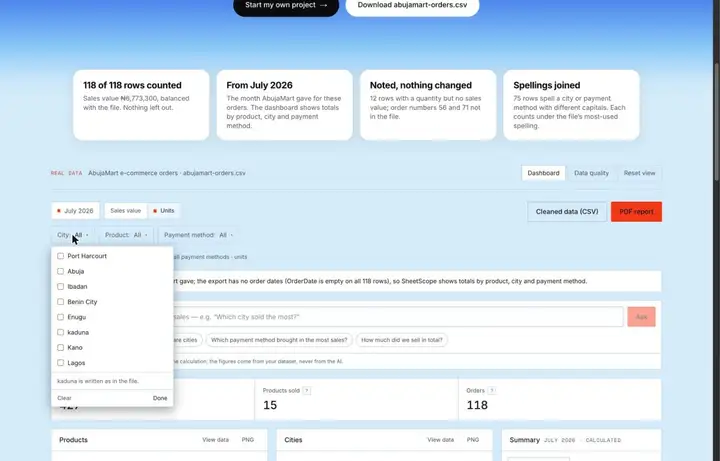
[03]
Select Lagos
Choose Lagos from the list to filter the dashboard data specifically for this city.
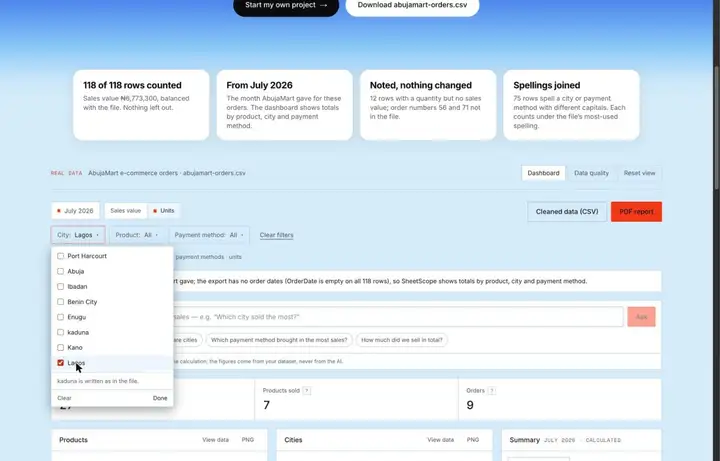
[04]
Click Done
Apply the filter for Lagos to update the dashboard metrics and see city-specific sales.
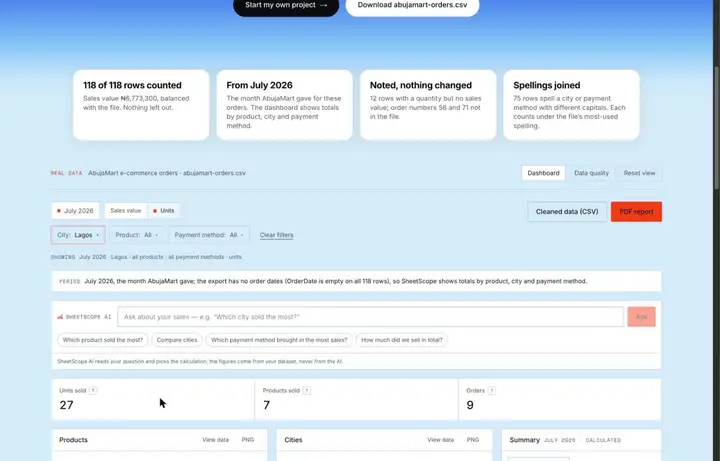
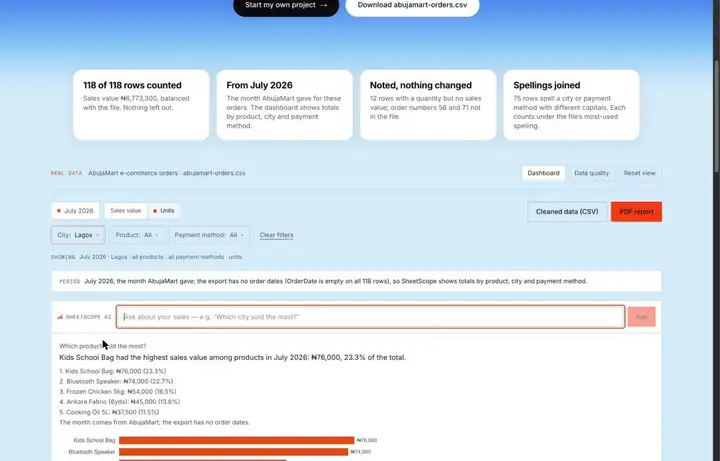
[05]
Click Which product sold the most?
Ask SheetScope AI to quickly identify the best-selling item from your sales records.
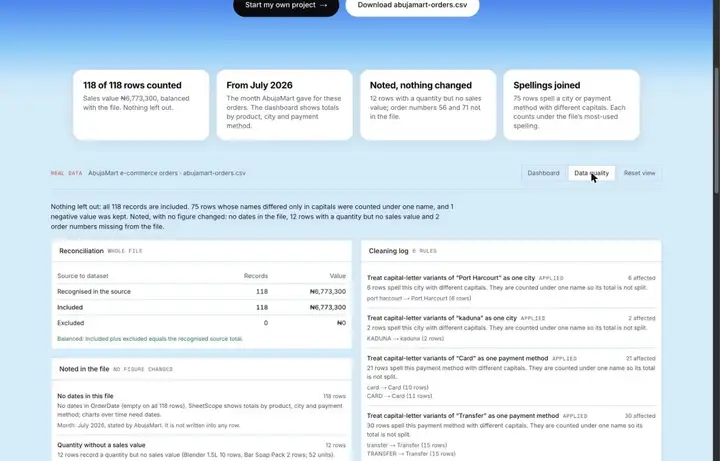
[06]
Click Data quality
See how SheetScope handled missing numbers, spelling variations, and uncounted rows in the original file.
[07]
Click Reset view
Reset the current view to restore the default dashboard filters and displays.
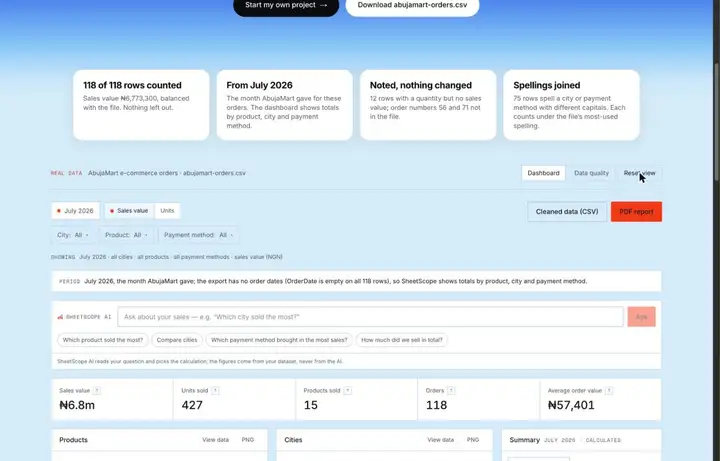
[08]
Review your reset dashboard
All filters have cleared, returning you to the complete overview of all sales and order numbers.
More case studies
Web app / Made with the StepLoom Recorder
Filter MTN Nigeria's reviews by language and feeling in ClientClue
Phone app / Made from a phone recording
Read MTN Nigeria's weekly report in ClientClue on an iPhone
Web app / Made from uploaded screenshots